Header links
Nefertiti for Sphinx can display links in the header, either in the same row as the rest of the header elements, or if there were many links, in a second row below the main header.
In the first row

Having a few link items allows for displaying them in one row along with the rest of the elements in the header. In need for further customization, like increasing the font size of the links, you can always provide your own CSS file to overwrite the styling. The element holding the header links has the CSS class nftt-header-links-large.
In the second row

Displaying several links might not fit well in one line together with the rest of the items in the header. In such a case they can be displayed below the name of the project. In the example image the second item is a dropdown item. Dropdown items group header links together.
In narrow windows
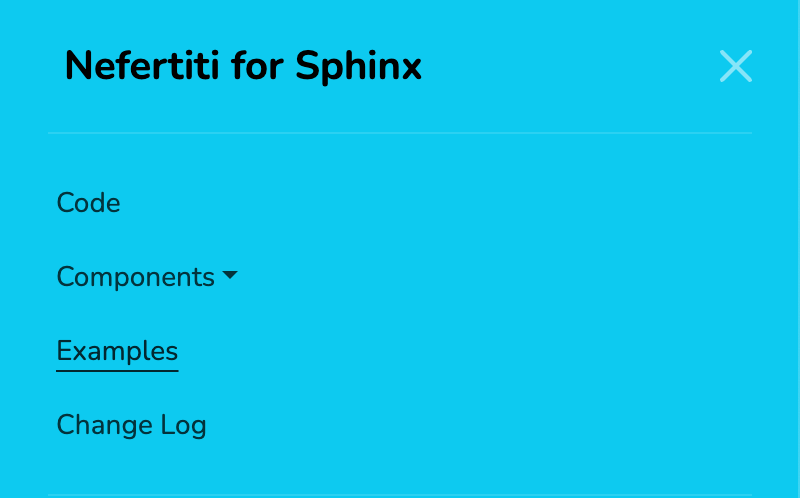
When resizing your browser window in your computer, or accessing a Sphinx site with a smaller device, like a phone or a tablet, the header resizes and hides the links under the menu in the right side of the header.
To further customize how the header links look like in a narrow window, you can provide your own CSS file and overwrite the CSS class nftt-header-links-small.
Theme options
The html_theme_options setting in Nefertiti for Sphinx can have two entries related with the display of header links:
The
header_linksentry is a list of Python dictionaries with the items to display.The
header_links_in_2nd_rowentry is a boolean value.
1. header_links
Header links can be either actual links or dropdown elements. Each header link may contain a text, a link, an optional match and an optional target:
text: a string.link: a document path in Sphinx or a URL.match: a string or list or strings, used as JavaScript Regular Expressions.target: a string with any of the expected values for the HTML anchor’s target attribute.
An example:
html_theme_options = {
    # ... other options ...
    "header_links": [
        {
            "text": "Examples",
            "link": "examples/index",
            "match": "/examples/*",
        },
    ],
}
When the user visits the link given in a header-link, an underline indicates that the item is the active header-link.
If we want to display the underline with other URLs that do not match the URL given in the link, pass the match key with a Regular Expression (or more than one) to indicate what URLs must activate the header-link.
Let’s see it with some examples.
1.1. Simple header links

The header displays the three links next to the project’s name.
The following header_links, added to the html_theme_options setting of an example conf.py file, adds 3 links to the header:
A link to the example home page,
a link to the tutorial page, and
a link to the blog.
'header_links': [
    {
        'text': 'Home',
        'link': 'index',
    },
    {
        'text': 'Tutorial',
        'link': 'tutorial',
    },
    {
        'text': 'Blog',
        'link': 'https://example.com/blog',
        'target': '_blank',
    },
],
The Tutorial link points to the URL /tutorial.html. When the user clicks on it the URL loads and an underline appears below Tutorial to indicate that it is the current active link:
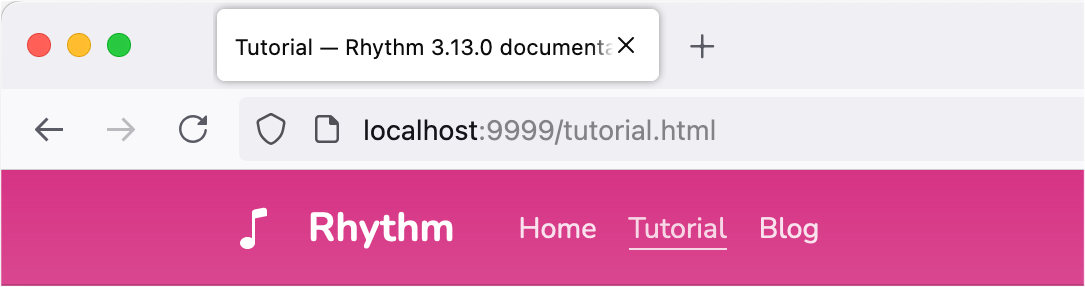
The location bar at /tutorial.html and the Tutorial link with an underline indicates that it is the active header link.
1.2. Header links with regexps
It is possible to use Regular Expressions with header links. You could have a toctree in your Sphinx project that groups together documents in different paths, and you might want to have an entry in your header that displays as active, with an underline, when the document loaded belongs to that toctree.
Imagine you have a toctree like:
.. toctree::
    :maxdepth: 2
    :caption: Learn

    learn/index
    python-types
    async
    tutorial/index
    tutorial/first-steps.md
    tutorial/dependencies/index.md
    tutorial/metadata.md
    advanced/index.md
You could add an entry Learn to your header with a header link like:
'header_links': [
    # ... other header links ...
    {
        'text': 'Learn',
        'link': 'learn/index',
        'match': [
            '/learn/*',
            '/python-types.html',
            '/async.html',
            '/tutorial/*',
            '/tutorial/dependencies/*',
            '/advanced/*',
        ]
    },
],
Each entry in the match attribute is interpreted as a JavaScript Regular Expression.
The example presented is based on the Learn menu item of the FastAPI documentation website. In FastAPI’s docs the Learn menu item groups together several URLs (see the original MkDocs configuration file here). You could get the same effect with the match attribute of the header_links.
1.3. Header links with dropdowns
If you wanted to reproduced the previous toctree as a dropdown menu in the header, you could rewrite the header_links as follow:
'header_links': [
    # ... other header links ...
    {
        "text": "Learn",
        "dropwdown": (
            {
                "text": "Learn",
                "link": "learn/index",
            }, {
                "text": "Python Types Intro",
                "link": "python-types",
            }, {
                "text": "Concurrency and async/await",
                "link": "async",
            }, {
                "divider": True,
            }, {
                "text": "Tutorial - User Guide",
                "link": "tutorial/index",
            }, {
                "text": "Advanced User Guide",
                "link": "advanced/index",
            }
        )
    }
]
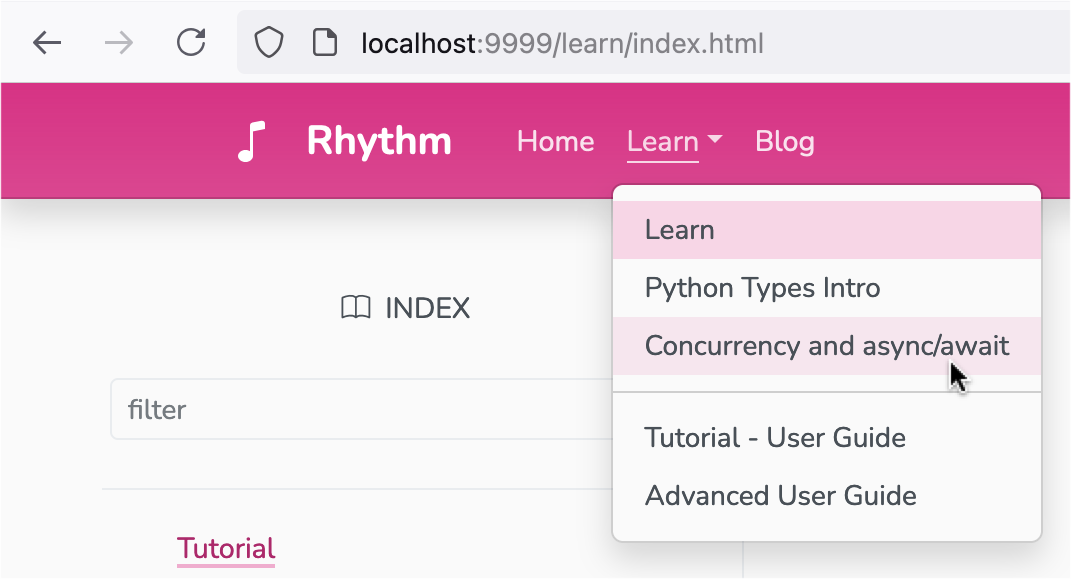
The example dropdown entry for “Learn” is a sequence of text and link.
1.4. Header links with dropdowns and regexps
Dropdowns can also include Regular Expressions by adding a match to the item inside the dropdown.
Following up on the previous example, if the tutorial had more documents, we would be able to paginate following the links at the bottom of the page. However, by doing so, the dropdown “Learn” would lose the active state, as the URL of the documents inside the tutorial would not match the "link": "tutorial/index":

The dropdown “Learn” lost the active state, as the URL /tutorial/body.html does not match any of the links in the header_link.
Adding the following match to the Tutorial item inside the dropdown will have the effect of keeping the item selected and the link active:
'header_links': [
    # ... other header links ...
    {
        "text": "Learn",
        "dropwdown": (
            {
                "text": "Learn",
                "link": "learn/index",
            }, {
                "text": "Python Types Intro",
                "link": "python-types",
            }, {
                "text": "Concurrency and async/await",
                "link": "async",
            }, {
                "divider": True,
            }, {
                "text": "Tutorial - User Guide",
                "link": "tutorial/index",
                "match": "/tutorial/*",
            }, {
                "text": "Advanced User Guide",
                "link": "advanced/index",
            }
        )
    }
]
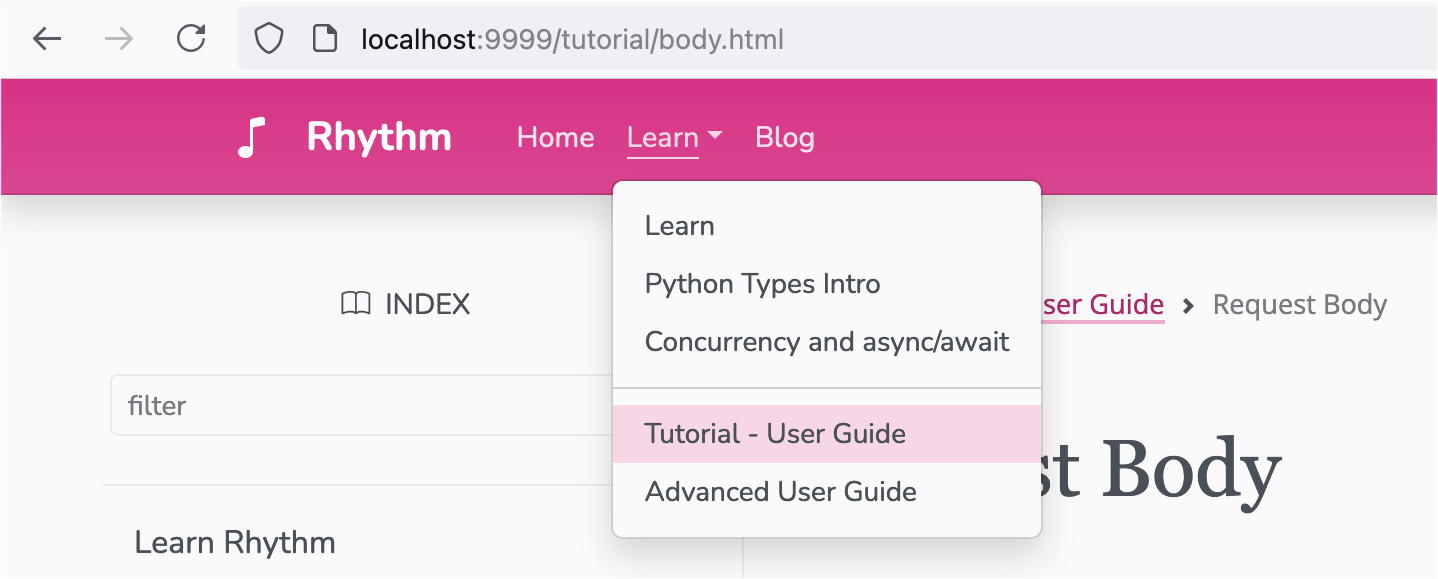
The dropdown “Learn” is active when the user visits the URL /tutorial/body.html as it matches the regular expression given in the match: ^/tutorial/*.
2. header_links_in_2nd_row
To display links in the second row, below the name of the project, define the option "header_links_in_2nd_row": True in the html_theme_options, in your project’s conf.py module.

Use "header_links_in_2nd_row": True to display the header links in the second row of the header.
Rebuild the theme
With the previous changes in place, save the content, clean, build and serve your project again:
$ make clean
$ make html
$ python -m http.server -d build/html
Visit http://localhost:8000 to take a look at the changes.